Contact Name Mismatches: What Went Wrong and How to Fix It
A recent bug caused some WhatsApp conversations to be synced to the wrong HubSpot contacts. Here’s what happened, how to check if you’re affected, and how to fix it using our new Clean Ups dashboard.
Before you start: Make sure your UNOsync extension is up to date — many of these issues are already fixed in the latest version. If it hasn’t updated automatically, see our manual/force update guide. Shoutout to Maloka for suggesting we add this reminder!
Because of these changes, you may see some strange behaviour (e.g. “already linked” warnings, AutoSync not turning on). The best fixes:
- Fix Sync Issues: In the extension, open Settings and click Fix Sync Issues. Clears internal mappings so you can sync again from the right chat.
- Unlink and relink: In the WhatsApp chat that’s linked to the wrong contact, click the contact name → Unlink, then sync again and choose the correct HubSpot contact.
- Clean Ups tool: In the UNOsync dashboard, use Clean Ups to find activities on the wrong contact, delete them, and re-sync to the correct one.
Details for each option are below.
🔍 What Went Wrong?
WhatsApp changed their frontend, which broke how UNOsync extracted contact information. As a result, some conversations were incorrectly matched to the wrong HubSpot contacts.
If you synced messages during this period, the activity may have ended up on the wrong person’s record in HubSpot.
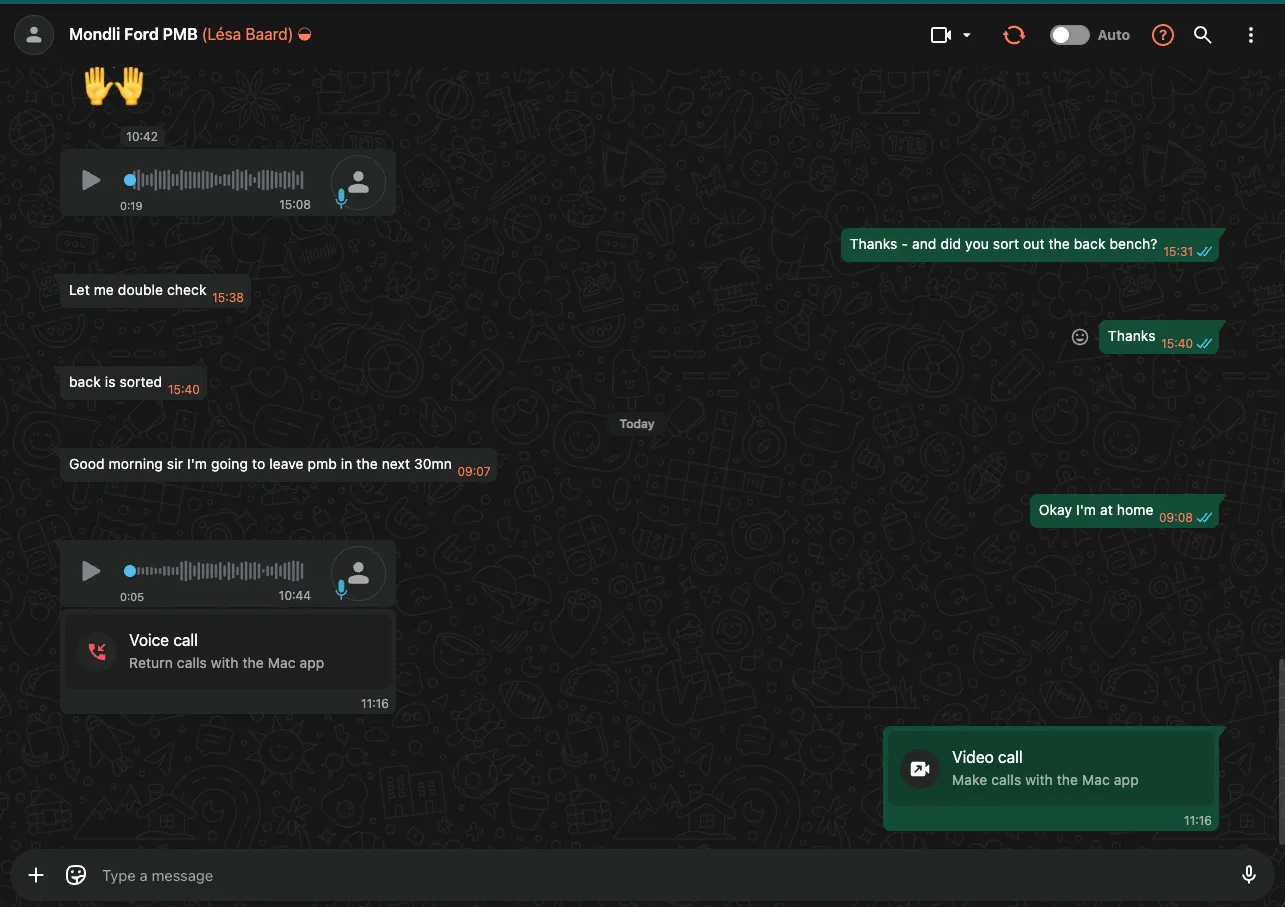
🔄 How to Fix: Unlinking and Relinking
If a WhatsApp contact is linked to the wrong HubSpot contact, you need to unlink it and sync again to the correct contact.
Step 1: Unlink the Contact
- Open the conversation in WhatsApp Web
- Click on the contact name at the top (where you see the HubSpot contact name)
- Click the “Unlink” button
- Confirm the unlink action
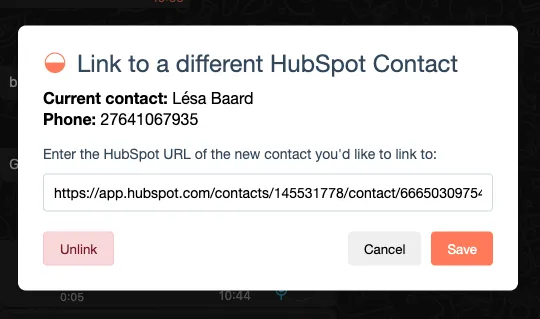
Step 2: Sync to the Correct Contact
After unlinking, sync the conversation again:
- Click the UNOsync sync button
- The contact selection will appear
- Carefully select the correct HubSpot contact
- Complete the sync
The conversation will now be linked to the correct contact going forward.
⚠️ “Already linked” or “AutoSync requires a HubSpot contact”
You might see a warning like: “This phone number is already linked to [Name]. Syncing would merge [Other name] into the same HubSpot contact”, and then “AutoSync requires a HubSpot contact. Please try again and create a contact.”
What’s going on?
This usually happens when you renamed the contact in WhatsApp (e.g. from “Gabriel Alfonso Sandoval Mora” to “Gabriel Sandoval”). UNOsync still has the old name stored for that number, so it treats the two names as different people and blocks sync to avoid merging the wrong contact.
How to fix it
- Open the UNOsync extension (click the puzzle piece in Chrome, then UNOsync).
- Go to Settings (or open the extension options).
- Click “Fix Sync Issues” (or “Clear contact mappings”). Confirm when prompted.
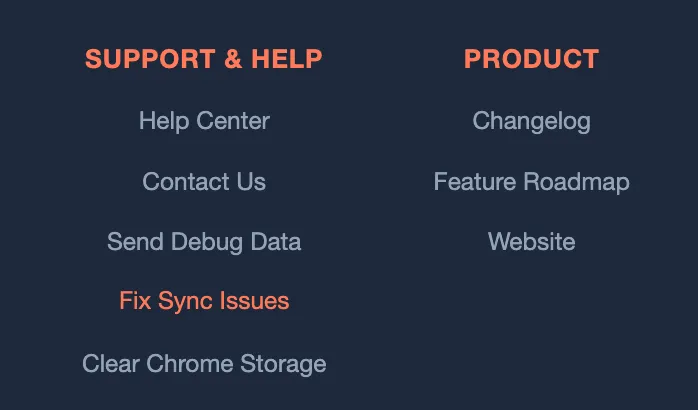
This clears the extension’s internal name→phone list. Your HubSpot data and links are not deleted.
4. Go back to the WhatsApp chat and click Sync again (and enable AutoSync if you use it).
The conversation will link correctly. Other chats will re-link as you sync them again; no data is lost.
We’ve also improved the extension so that renames (e.g. shortened names) are treated as the same person. After updating, many of these cases will sync without needing Fix Sync Issues.
Pro Tips for Accurate Linking
- ✅ Verify the phone number before confirming
- ✅ Check the email if available
- ✅ Look at recent activities on the HubSpot contact to confirm it’s the right person
- ✅ Create a new contact in HubSpot if the person doesn’t exist yet
- ❌ Don’t rush through the contact selection
🎯 Finding Affected Records: The Clean Ups Dashboard
If you have many conversations synced, you might not know which ones are affected. We’ve built a new Clean Ups feature in the UNOsync dashboard to help you identify mismatched activities at scale.
What It Shows
The Clean Ups page displays activities where the HubSpot contact name does NOT appear in the WhatsApp message senders. This is a strong indicator that something might be wrong.
Accessing Clean Ups
- Go to app.unosync.co
- Log in with your HubSpot account
- Click “Clean Ups” in the sidebar
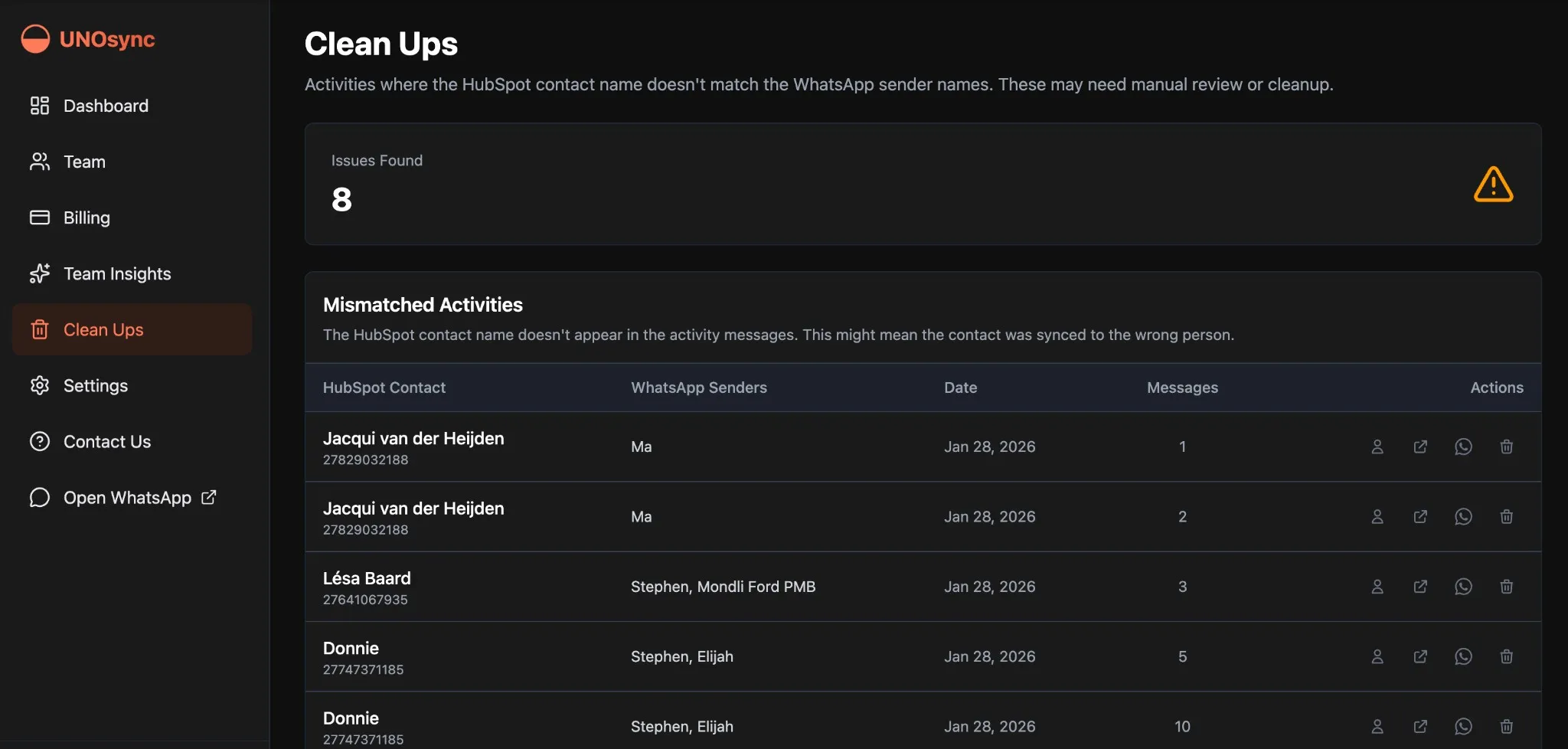
Available Actions
For each mismatched activity, you can:
| Action | What It Does |
|---|---|
| 👤 View Contact | Opens the HubSpot contact record |
| 📄 View Activity | Opens the specific activity on HubSpot |
| 💬 Open WhatsApp | Opens WhatsApp Web to the phone number |
| 🗑️ Delete | Removes the activity from HubSpot and UNOsync |
Workflow
- Review each activity using the action buttons
- Delete activities that are on the wrong contact
- Re-sync the conversation to the correct contact (using the unlink/relink process above)
📊 Preventing Future Mismatches
Best Practices
- Always verify before syncing: Take a moment to confirm you’re selecting the right contact
- Keep HubSpot contacts clean: Merge duplicates and maintain accurate phone numbers
- Use consistent naming: Where possible, align WhatsApp contact names with HubSpot records
- Regular audits: Check the Clean Ups dashboard periodically
HubSpot Hygiene Tips
- Remove or merge duplicate contacts
- Ensure phone numbers are properly formatted
- Add secondary phone numbers to contacts who use multiple numbers
- Keep contact names up to date
📞 Need Help?
If you’re dealing with a large number of mismatched activities or need assistance cleaning up your data:
- Contact support: Click the “Contact Us” button in the dashboard
- Email us: support@unosync.co
We’re here to help ensure your HubSpot data stays clean and your WhatsApp conversations are properly tracked.
Remember: Clean CRM data leads to better insights, more accurate reporting, and a clearer picture of your customer relationships. Taking the time to fix mismatches now will pay off in the long run.
UNOsync is a powerful Chrome extension that seamlessly integrates WhatsApp with HubSpot CRM. With UNOsync, you can:
- Sync WhatsApp conversations directly to HubSpot
- Track customer interactions in one place
- Save hours of manual data entry
- Improve team collaboration on WhatsApp chats