How it works
Get WhatsApp conversations into HubSpot in a few steps. No WhatsApp Business account needed.
Download for Chrome
Install UNOsync from the Chrome Web Store. It runs in your browser and works with WhatsApp Web; no separate app to install.
Get the extension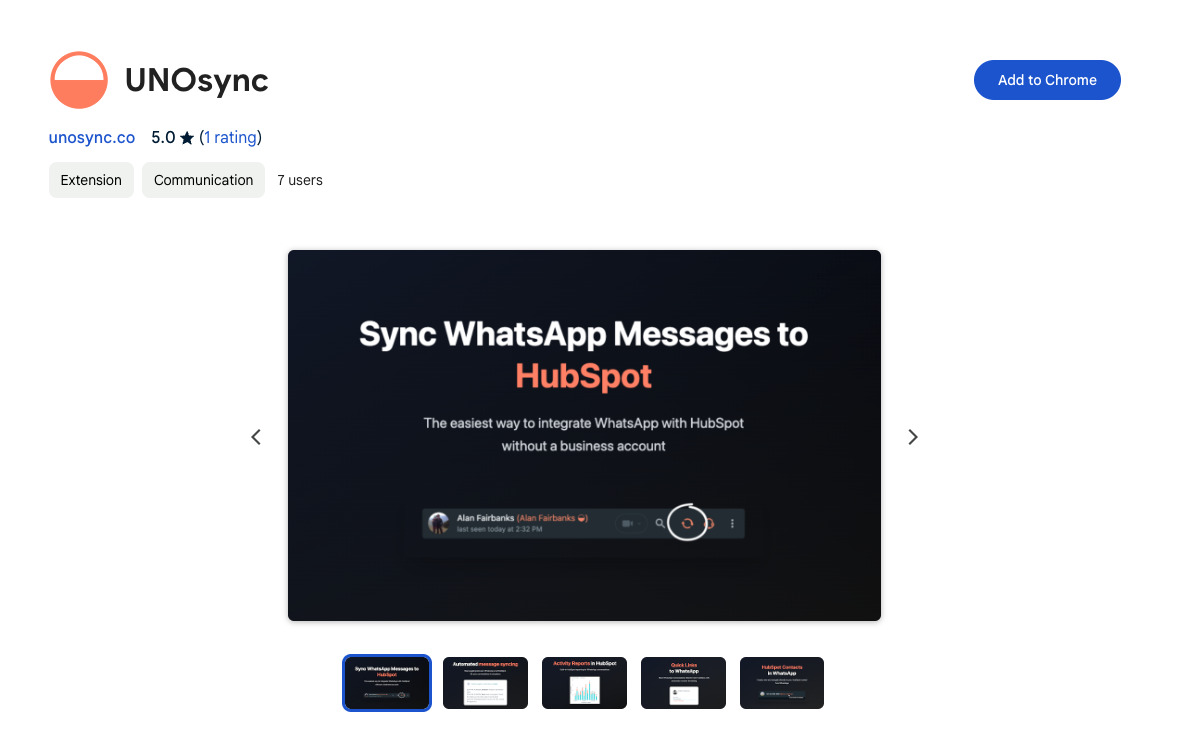
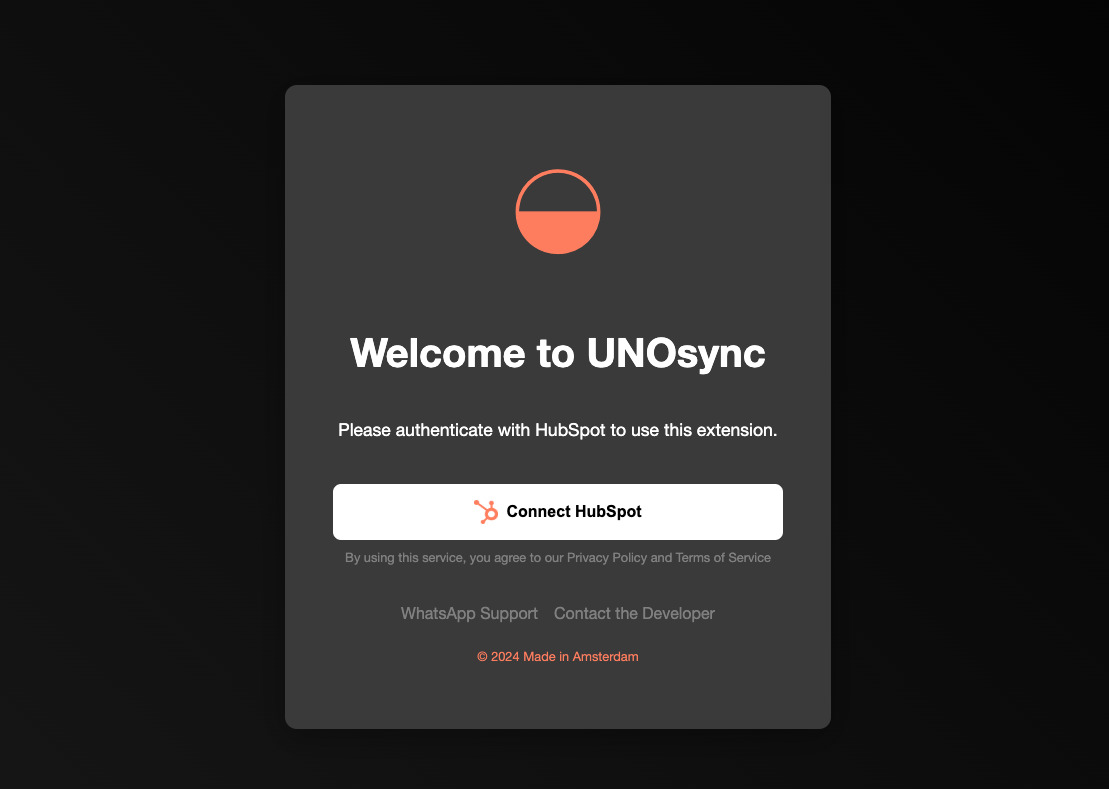
Connect HubSpot
In the UNOsync panel or extension settings, connect your HubSpot account once. After that, UNOsync can create and update contacts and log WhatsApp conversations as activities in HubSpot.
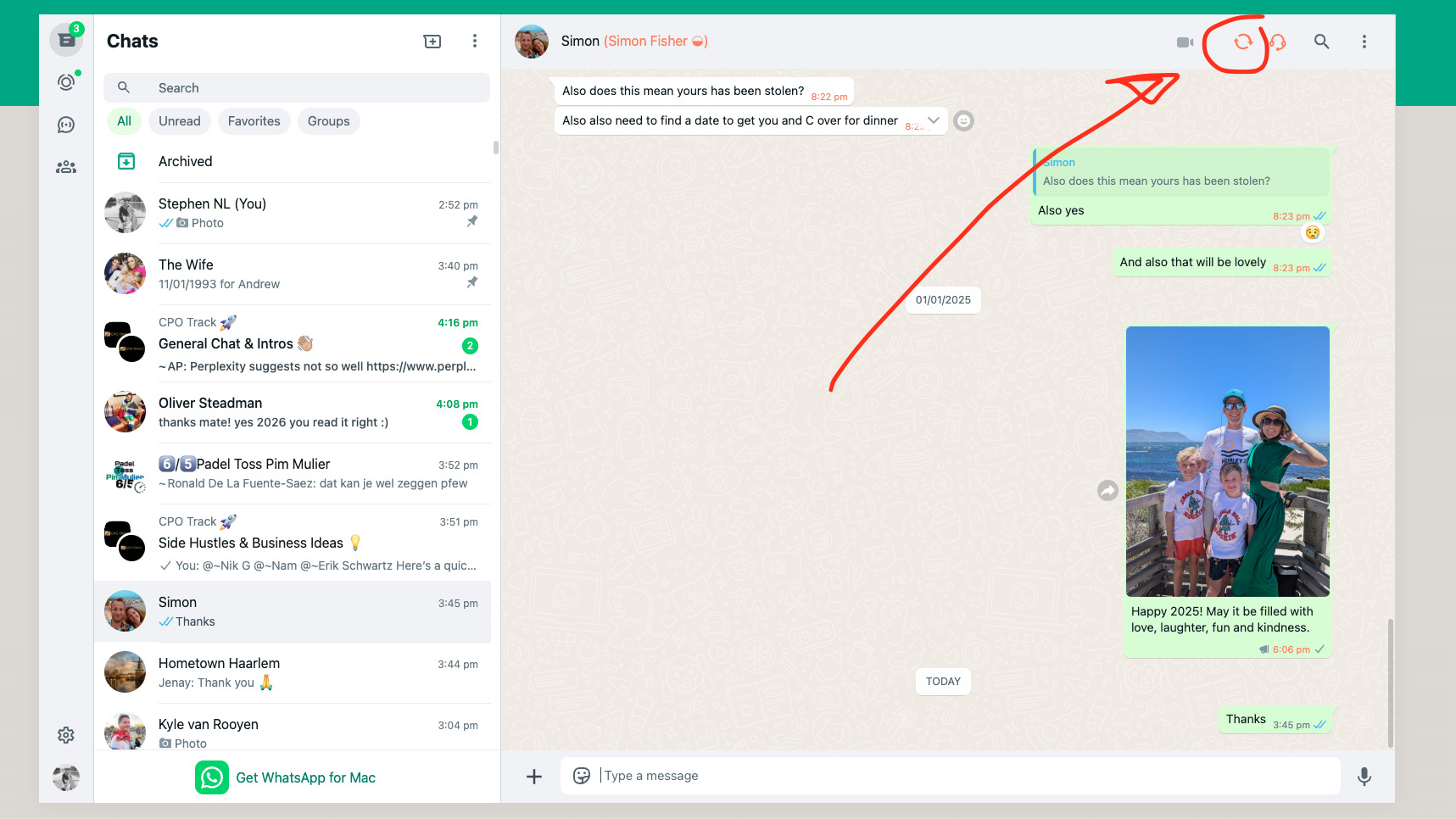
Open WhatsApp Web and sync your chats
Open web.whatsapp.com in Chrome and log in to WhatsApp. UNOsync adds a panel so you can sync conversations to HubSpot and use quick links between WhatsApp and your CRM.
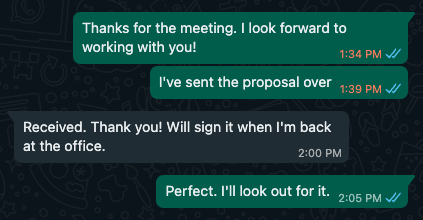
Choose between auto and manual sync
You decide how to sync: turn on auto-sync for hands-free updates, or use manual sync to choose exactly which chats and messages go to HubSpot. You stay in full control.
Use your dashboard
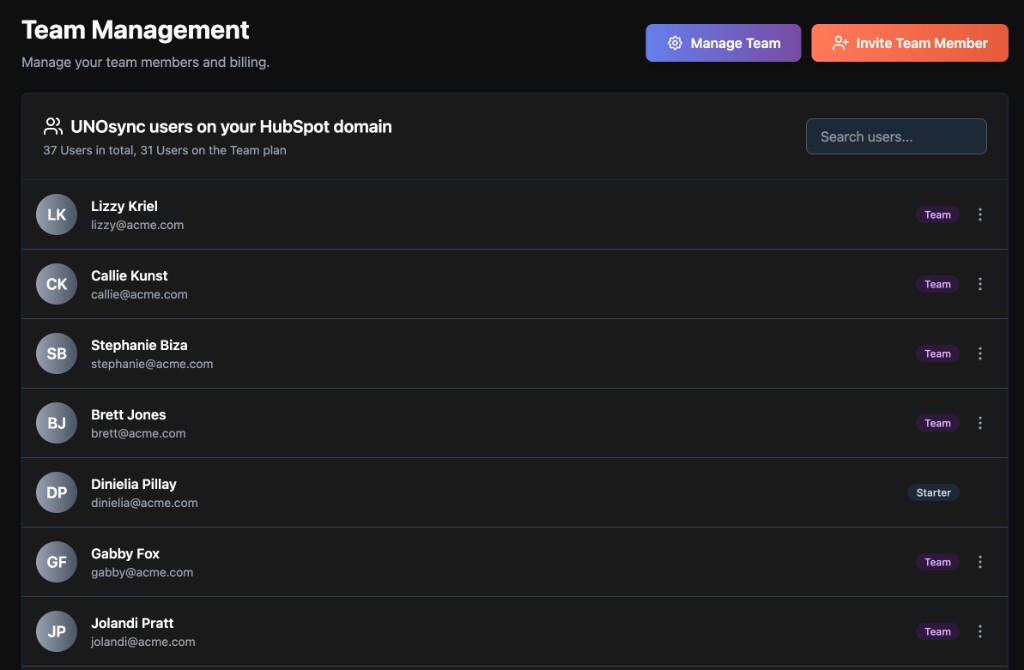
Sign in at app.unosync.co to see your usage, manage your team and billing, view insights, and handle cleanups. Everything stays in sync with the extension.
Ready to start?
Download the extension and connect WhatsApp to HubSpot in minutes.
Download the Chrome Extension